



You’ve done the work. You’ve signed up for ChatGPT, Canva, maybe a scheduling tool, maybe an email platform. You’re using AI. You’re supposed to be saving time.
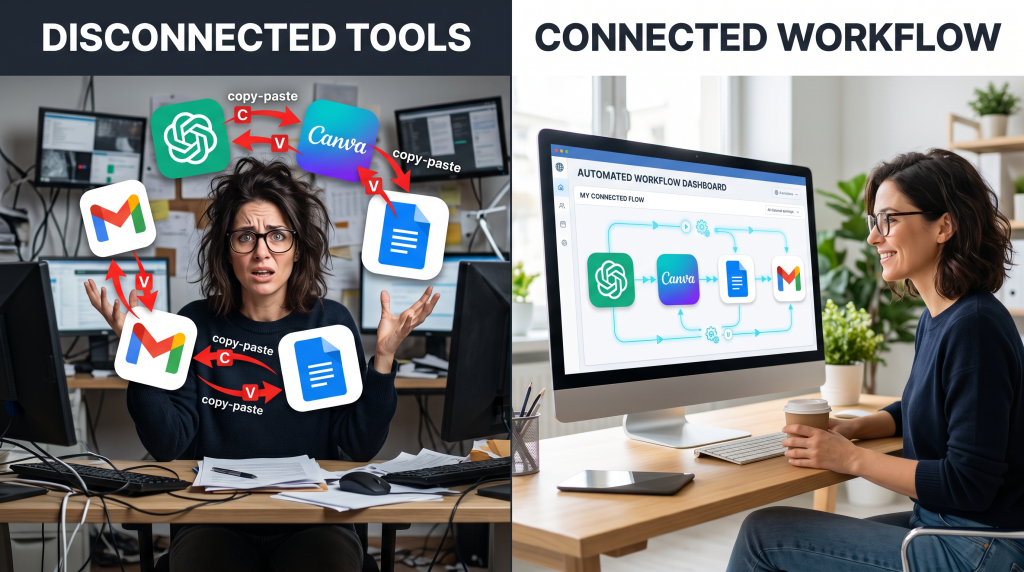
But somehow, you’re still spending hours copying text from ChatGPT into Google Docs, downloading images from Canva to upload to Buffer, pasting transcripts from one tool into another. You’re juggling tabs, switching contexts, and wondering where all that promised productivity went.
Here’s the problem: tools alone don’t save time. Connected workflows do.
Individual AI tools are like having a garage full of power tools but no workbench. You’ve got the equipment, but without a system to make them work together, you’re still doing everything manually—just with shinier tools.
Here’s what working with disconnected tools costs you:
I was in the same boat. I had a dozen AI tools and still felt like I was doing everything myself. Then I started connecting them into workflows—sequences where one tool’s output becomes another tool’s input automatically. The difference was night and day.
In this post, I’m sharing the 5 connected workflows that turned my AI tool stack from a collection of gadgets into a productivity engine. You’ll learn how to make your tools work together so you do the work once, and AI handles the rest.
Soft Gate: Get Your AI Workflow Blueprint
Before we dive into the 5 workflows, I want to give you a resource that makes this actionable. I’ve created a free AI Workflow Blueprint that includes setup guides for all 5 workflows with screenshots, Zapier templates, and a 30-day adoption tracker.
It’s the exact system I use to help business owners turn isolated AI tools into time-saving workflows.
[Click here to grab your free AI Workflow Blueprint.]
The “System” Mindset: From Tools to Workflows
Here’s the shift that changes everything:
A tool is something you use. A workflow is something that runs.
| Tools | Workflows |
|---|---|
| You open ChatGPT to write | ChatGPT writes → automatically sends to Canva |
| You open Canva to design | Canva designs → automatically saves to Buffer |
| You open Buffer to schedule | Buffer schedules → automatically notifies you |
A workflow is a sequence of tools working together so you do the work once, and AI handles the rest.
The 5 connected workflows we’re covering:
| Workflow | What It Does |
|---|---|
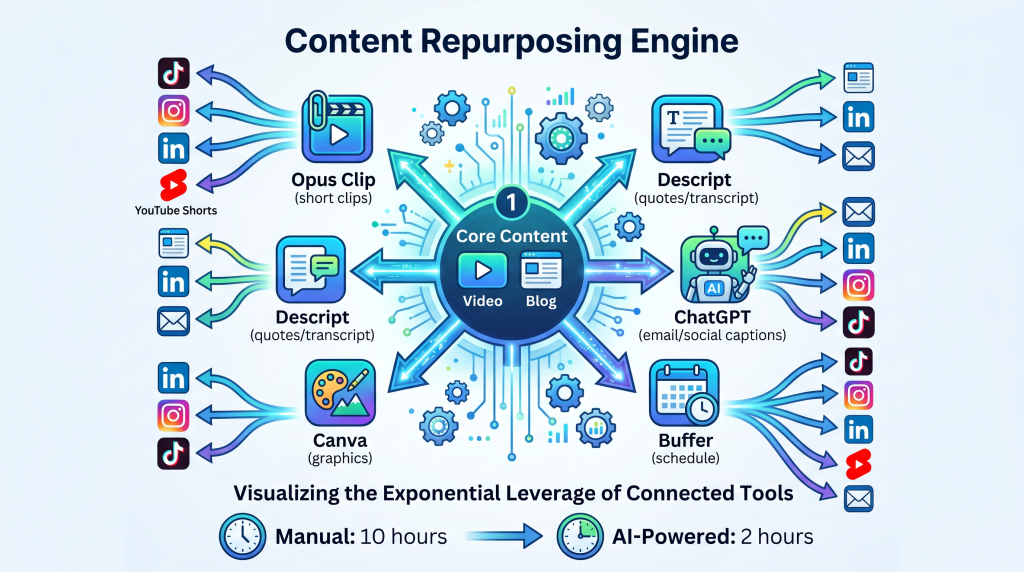
| Content Repurposing Engine | One piece of content → every platform |
| Client Onboarding System | One booking → everything set up automatically |
| Social Media Factory | Ideas → posts → schedule in one sitting |
| Research-to-Content Pipeline | Research → outlines → drafts |
| Customer Support Loop | Questions → answers → self-service |
You don’t need to build all five. Start with the one that solves your biggest pain point.
Workflow #1: The Content Repurposing Engine
The Problem:
You create a blog post. Then you manually repurpose it for LinkedIn, Twitter, Instagram, email, and maybe a video. You spend hours copying, rewriting, and reformatting the same ideas for different platforms.
The Connected Workflow:
| Step | Tool | Action |
|---|---|---|
| 1 | ChatGPT | Generate blog post from outline or transcript |
| 2 | Opus Clip | Upload video → AI generates short clips |
| 3 | Descript | Pull quotes from video → create text snippets |
| 4 | Canva | Create social graphics for key takeaways |
| 5 | Buffer | Schedule all repurposed content across platforms |
How It Flows:
1. Record one video (30 minutes) OR write one blog post
2. Opus Clip automatically creates 10+ short clips for TikTok/Reels/Shorts
3. Descript generates transcript → pull 5 key quotes for LinkedIn/Twitter
4. ChatGPT summarizes blog post into email newsletter and 3 social captions
5. Canva generates branded graphics for each piece using Magic Design
6. Buffer schedules everything for the week
Time Saved:
One core piece becomes 20+ pieces of content with 80% less manual work.
Workflow #2: The Client Onboarding System
The Problem:
Every new client means the same manual steps: welcome email, contract, invoice, calendar invite, project setup. Each client takes 1–2 hours of your time before you’ve done any actual work.
The Connected Workflow:
| Step | Tool | Action |
|---|---|---|
| 1 | Calendly | Client books discovery call |
| 2 | Zapier | Trigger: new Calendly booking → create client record |
| 3 | HubSpot (free) | Add client to CRM with status “New Lead” |
| 4 | Dubsado/HoneyBook | Send contract + invoice automatically |
| 5 | ChatGPT | Generate personalized welcome email draft |
| 6 | Notion | Create client project page with template |
How It Flows:
1. Client books call via Calendly
2. Zapier automatically:
3. Dubsado sends contract and invoice automatically
4. ChatGPT drafts personalized welcome email (you review and send in 2 minutes)
5. Client signs and pays → Zapier updates CRM status to “Active Client”
Time Saved:
Onboarding becomes a 5-minute review instead of a 2-hour manual process.
Workflow #3: The Social Media Factory
The Problem:
Creating social media content from scratch every day—ideation, writing, designing, scheduling—consumes hours of your week. You feel like you’re always behind.
The Connected Workflow:
| Step | Tool | Action |
|---|---|---|
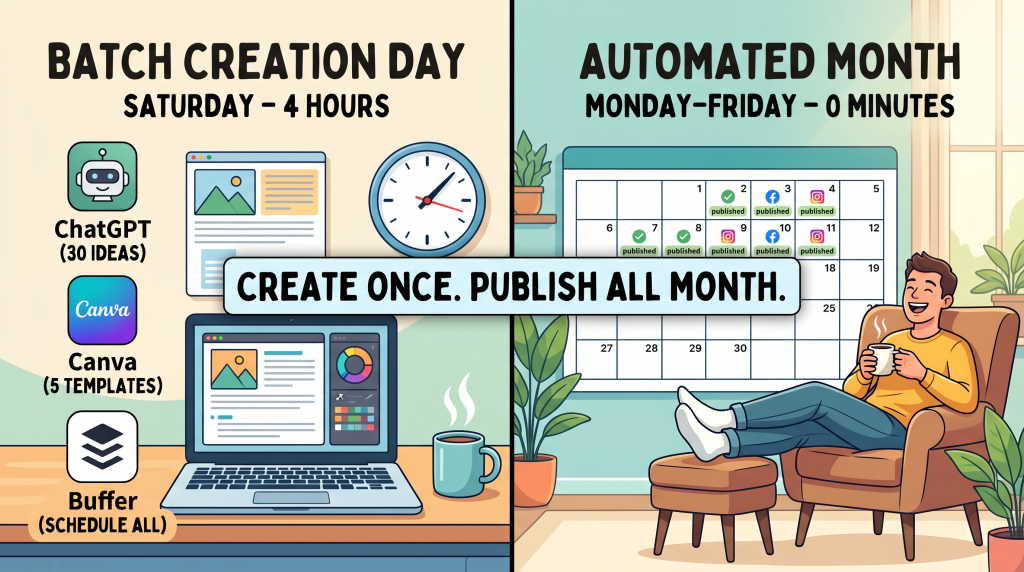
| 1 | ChatGPT | Generate 30 content ideas in one sitting |
| 2 | ChatGPT | Write captions for all 30 ideas (templates + customization) |
| 3 | Canva | Create batch of templates (design once, duplicate) |
| 4 | Canva Magic Studio | Generate variations with one click |
| 5 | Buffer/Hypefury | Schedule entire month in one sitting |
How It Flows:
1. ChatGPT brainstorm: “Give me 30 content ideas for a [niche] business. Include hooks, formats, and angles.” (1 hour)
2. ChatGPT caption templates: *”Write 5 variations of a caption for each of these 3 post types: educational, behind-the-scenes, promotional.”*
3. Canva templates: Create 5 reusable templates (1 hour)
4. For each post: Paste caption into Canva, click “Magic Design” to adapt template (30 seconds per post)
5. Buffer: Add all posts to queue with one click each
6. Buffer auto-publishes on your schedule
Time Saved:
One Saturday of batch creation = a month of content. No daily social media grind.
Workflow #4: The Research-to-Content Pipeline
The Problem:
Research takes hours—reading articles, gathering data, organizing notes—before you even start creating content. By the time you’re ready to write, you’re already mentally exhausted.
The Connected Workflow:
| Step | Tool | Action |
|---|---|---|
| 1 | Perplexity AI | Research topic with citations |
| 2 | ChatGPT | Summarize research into outline |
| 3 | ChatGPT | Draft content from outline |
| 4 | Notion | Save research and drafts in organized database |
| 5 | Grammarly | Polish final draft |
How It Flows:
1. Perplexity AI: Research topic with specific questions. Get cited answers from authoritative sources. (30 minutes)
2. Copy research into ChatGPT with prompt: “Create a detailed outline for a blog post using this research. Include introduction, 5 main points, and conclusion.” (5 minutes)
3. Ask ChatGPT: “Write the first draft based on this outline. Use a conversational tone. Add transitions between sections.” (10 minutes)
4. Save outline, draft, and research links in Notion database for future reference (5 minutes)
4. Run final draft through Grammarly for polish (5 minutes)
Time Saved:
From idea to polished draft in under 2 hours.
Workflow #5: The Customer Support Loop
The Problem:
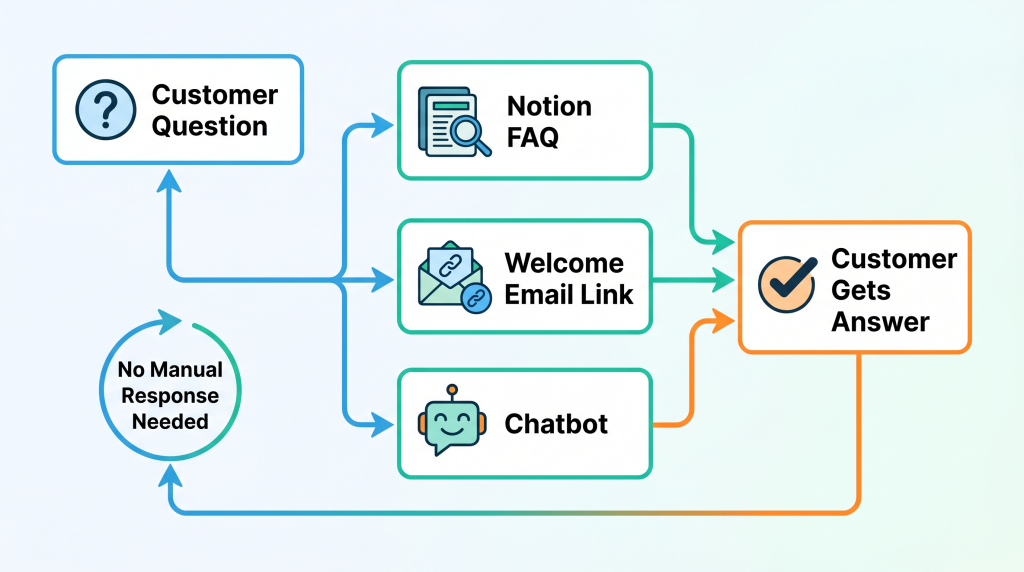
You answer the same questions over and over via email, DMs, and comments. Each one takes 2–5 minutes, but they add up to hours every week.
The Connected Workflow:
| Step | Tool | Action |
|---|---|---|
| 1 | ChatGPT | Create FAQ document from common questions |
| 2 | Notion | Publish FAQ as public knowledge base |
| 3 | Email tool (MailerLite) | Auto-send FAQ link in welcome email |
| 4 | Chatbot (ManyChat) | Auto-answer common questions on social/website |
| 5 | Text expander (TextExpander) | Templates for one-off responses |
How It Flows:
1. Collect common questions from emails, DMs, and comments over a week
2. Use ChatGPT to write clear, helpful answers for each: “Write a friendly, helpful answer to this common customer question: [question]”
3. Publish in Notion as public FAQ page (one link to share everywhere)
4. Add link to MailerLite welcome email sequence—new customers see answers before asking
5. Set up ManyChat (free) on Instagram/Facebook to detect keywords and auto-reply with FAQ links
6. Create TextExpander shortcuts for questions that still come in individually (type “;faq” → inserts full FAQ link)
Time Saved:
80% of questions answer themselves. You only handle what needs your human touch.
The “Too Many Tools” Objection
I hear this from almost every business owner: “I already feel like I have too many tools. Adding connections just feels like more complexity.”
Here’s the truth:
A connected workflow isn’t more complexity. It’s complexity you set up once so every day becomes simpler.
Think about it:
You don’t need to implement all 5 workflows at once. Pick ONE that solves your biggest pain point. Start with the tools you already use. Add connections gradually.
The goal isn’t more tools. The goal is fewer manual steps.
The 30-Day Workflow Adoption Plan
You don’t need to build all 5 workflows this week. Here’s a realistic 30-day plan.
| Week | Focus | Actions |
|---|---|---|
| Week 1 | Audit + Pick One | Identify your biggest time-suck. Choose 1 workflow from this post. |
| Week 2 | Set Up Connections | Create accounts (free tiers), connect tools using Zapier or native integrations. Test once. |
| Week 3 | Test and Refine | Run the workflow with real work. Adjust based on what you learn. Note what works. |
| Week 4 | Add Second Workflow | Once first workflow is running smoothly, add another. Or deepen the first. |
Result: 10–15 hours saved per week. Connected systems, not isolated tools.
You now have 5 connected workflows, the tool combinations that power them, and a 30-day adoption plan. You understand the shift from tools to systems.
But knowing how to combine tools and actually setting up the connections are two different things. That’s why I created a resource to guide you through every step.
Get Your Free AI Workflow Blueprint (Benefit-Focused)
Problem Recap: You’re using AI tools, but you’re still copying and pasting, juggling tabs, and not seeing the time savings you expected. You have the tools but not the workflows.
Solution: I’ve created a free AI Workflow Blueprint that takes these 5 workflows and turns them into done-with-you systems. Inside, you’ll get:
Action: Every week you spend with disconnected tools is a week of productivity you’ll never get back. Click the button below, grab your free Blueprint, and start building your first connected workflow today.
[Get Your Free AI Workflow Blueprint →]
P.S.
Here’s the truth about AI productivity: tools alone don’t save time. Connected workflows do. The 5 workflows in this post are the difference between having a garage full of power tools and having a workshop where everything works together. Your Blueprint is waiting. Pick one workflow and set it up this week.
Tools alone don’t save time. Connected workflows do.
Aslam Ssonko