


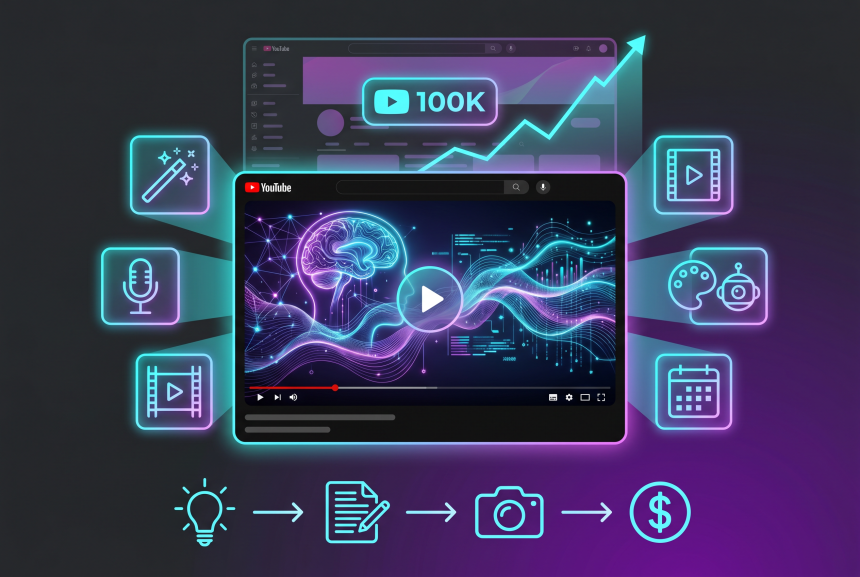
You’ve wanted to start a YouTube channel. You have ideas. You have knowledge to share. You know there’s an audience out there.
But you don’t want to show your face.
You’re camera-shy. You don’t have recording equipment. You don’t want to be on camera. And every guide you read assumes you’re ready to talk to a lens.
So you haven’t started.
I was exactly where you are. I didn’t want to be on camera. I didn’t have a microphone. I didn’t know how to edit. Then I discovered something simple: AI can create your videos for you.
In this guide, I’m going to walk you through exactly how to start a faceless YouTube channel using AI. No face. No voice recording. No editing skills. Just a step-by-step plan to publish your first video.
By the end, you’ll have everything you need to launch your channel—without ever appearing on camera.
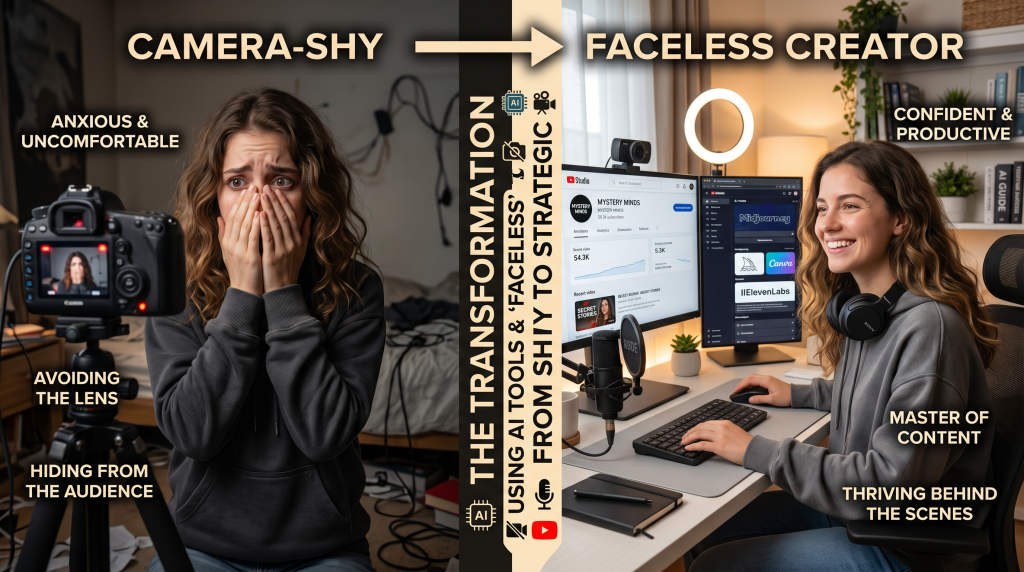
Soft Gate: Get Your Faceless YouTube Starter Kit
Before we dive into the steps, I want to give you a tool that makes this journey easier. I’ve created a free Faceless YouTube Starter Kit that includes the 4-week plan, script templates, thumbnail templates, and a complete tool guide.
It’s the exact system I used to launch my first faceless channel.
[Click here to grab your free Faceless YouTube Starter Kit.]
What Is a Faceless YouTube Channel?
Definition:
A faceless YouTube channel is a channel where you never appear on camera. Instead, you use:
Examples of Faceless Channel Niches:
| Niche | Example Content |
|---|---|
| Top 10 Lists | “Top 10 Productivity Apps You Need in 2026” |
| Educational | “How to Start an Online Business (Step by Step)” |
| Storytelling | “Scary Stories, True Crime, Unexplained Mysteries” |
| Tech Reviews | “Best Laptops Under $1000” |
| Motivation | “Motivational Speeches for Entrepreneurs” |
| Finance | “How to Save $10,000 in One Year” |
| AI Tools | “Best AI Tools for Content Creators” |
Why Faceless Channels Work:
The AI Tools You Need (All Beginner-Friendly)
Essential Tools (All Have Free Tiers):
| Tool | What It Does | Free Tier |
|---|---|---|
| ChatGPT | Writes your scripts | Free |
| Canva | Creates thumbnails, text overlays | Free |
| CapCut | Edits videos (free, no watermark) | Free |
| ElevenLabs or Microsoft Edge | AI voiceover | Free / Limited |
| Pexels or Pixabay | Free stock footage | Free |
Optional (For Better Results):
| Tool | What It Does | Cost |
|---|---|---|
| Opus Clip | Repurpose video into shorts | Free trial |
| Descript | Advanced video editing | Free tier |
| Canva Pro | More templates, AI features | $15/month |
Your Task: Create free accounts for ChatGPT, Canva, and CapCut today.
Step 1: Choose Your Niche and Channel Name
How to Choose a Niche:
| Question | Answer |
|---|---|
| What topics do you enjoy? | Pick something you can talk about for hours |
| What content do you already watch? | Start with what you know |
| What’s profitable? | Tech, finance, AI, education, storytelling |
Good Faceless Niches for Beginners:
| Niche | Why It Works |
|---|---|
| AI Tools | Trending, easy to find content, always changing |
| Productivity | Always in demand, evergreen |
| Top 10 Lists | Simple format, easy to script, high engagement |
| Educational | Evergreen content, builds authority |
| Storytelling | High engagement, loyal audience |
Channel Name Ideas:
Your Task: Pick your niche and channel name this week.
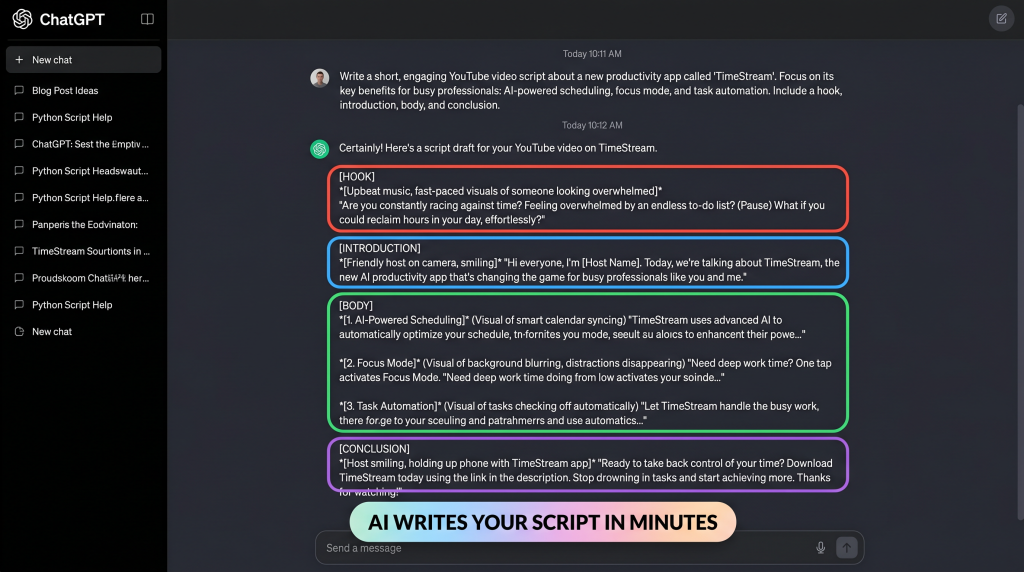
Step 2: Write Your Script (With AI)
Script Structure for Faceless Videos:
| Section | Length | Content |
|---|---|---|
| Hook | 0–30 seconds | Grab attention, state the problem |
| Introduction | 30–60 seconds | What they’ll learn, why it matters |
| Body | 5–10 minutes | 3–5 main points, each with examples |
| Conclusion | 30–60 seconds | Summary, call to action (like, subscribe) |
How to Write Scripts with ChatGPT:
| Step | Prompt |
|---|---|
| 1 | “Give me 10 video ideas for a faceless YouTube channel about [niche]” |
| 2 | “Write a script for a 10-minute faceless video about [topic]. Include hook, intro, 5 main points, conclusion, and call to action.” |
| 3 | “Make it conversational, engaging, and beginner-friendly.” |
| 4 | Review and edit to add your personality |
Example Prompt:
“Write a script for a 10-minute faceless video about the best AI tools for beginners. Include hook, intro, 5 tools with explanations, conclusion, and call to action. Make it conversational and beginner-friendly.”
Your Task: Write your first script with ChatGPT this week.
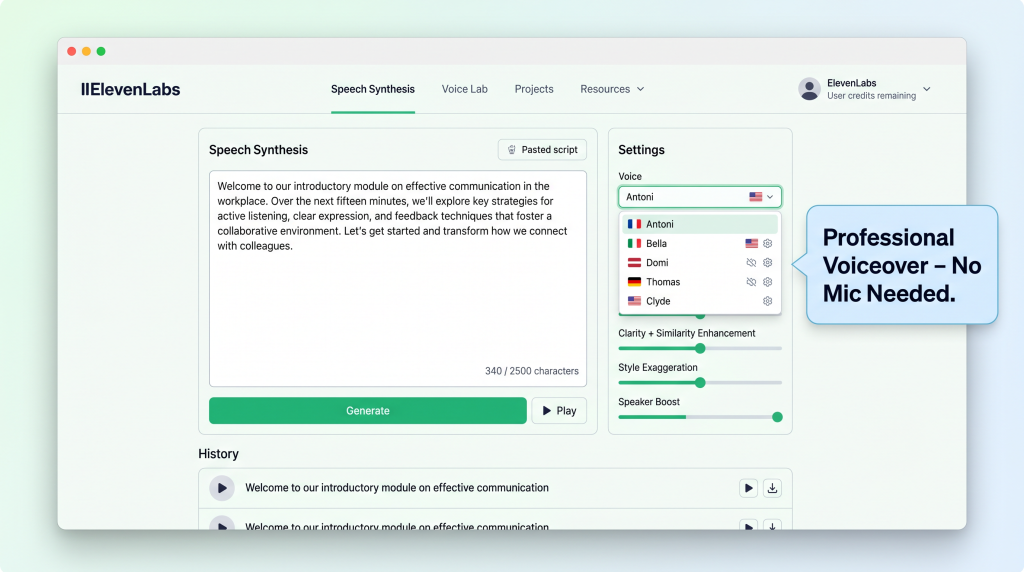
Step 3: Create AI Voiceover (No Voice Recording)
Option 1: Microsoft Edge Natural Voices (Free, Good Quality)
| Step | Action |
|---|---|
| 1 | Open Microsoft Edge browser |
| 2 | Paste your script into a Word or Google Doc |
| 3 | Use the “Read Aloud” feature (right-click → Read Aloud) |
| 4 | Record using screen recorder (OBS free) or audio recorder |
| 5 | Save as MP3 |
Option 2: ElevenLabs (Best Quality, Free Tier)
| Step | Action |
|---|---|
| 1 | Go to ElevenLabs.io, create free account |
| 2 | Paste your script |
| 3 | Choose a voice (many free options) |
| 4 | Click generate |
| 5 | Download as MP3 |
Option 3: Free Online TTS Tools
| Tool | Best For |
|---|---|
| TTSMaker | Free, many voices, no account needed |
| Speechify | Free tier, natural voices |
| Google Cloud TTS | Free tier, good quality |
Your Task: Generate your voiceover for your first video.
Step 4: Find Stock Footage
Best Free Stock Footage Sites:
| Site | Best For |
|---|---|
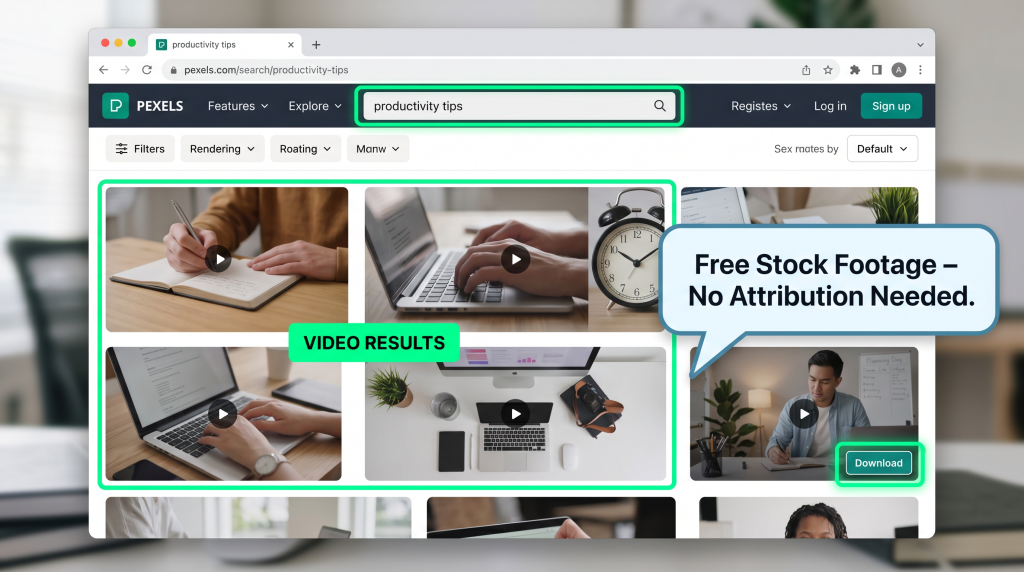
| Pexels | High-quality, free, no attribution needed |
| Pixabay | Large library, free |
| Unsplash | Photos (great for thumbnails) |
| Coverr | Short video clips |
How to Find Footage for Your Script:
| Step | Action |
|---|---|
| 1 | Read your script, identify key visual moments |
| 2 | Search for keywords on Pexels or Pixabay |
| 3 | Download 10–20 clips (more than you need) |
| 4 | Save in a folder for editing |
Pro Tip: Download 2–3 clips per minute of video. For a 10-minute video, aim for 20–30 clips.
Your Task: Download footage for your first video.
Step 5: Edit Your Video (With CapCut)
Why CapCut:
Simple Editing Workflow:
| Step | Action |
|---|---|
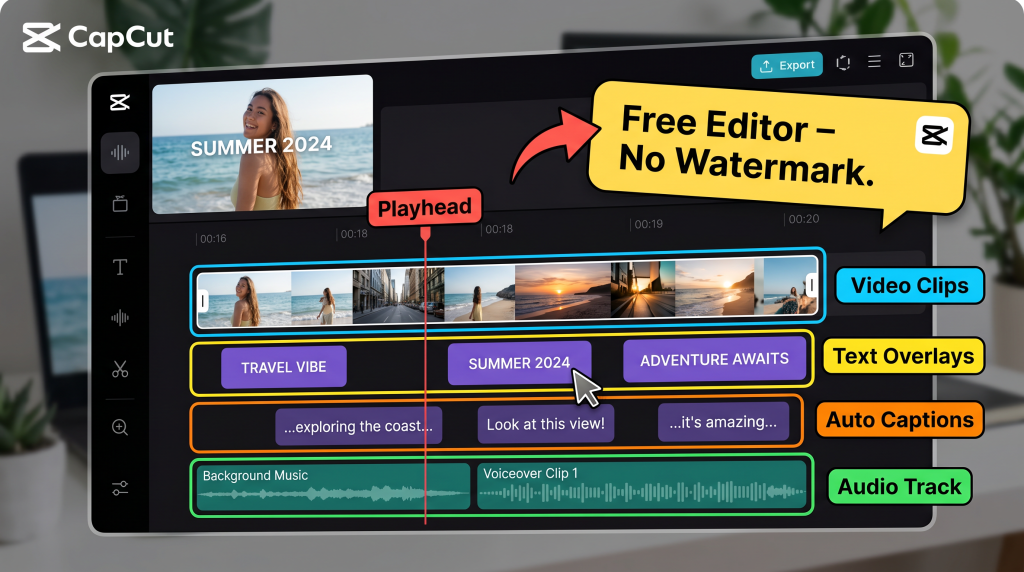
| 1 | Import voiceover audio into CapCut |
| 2 | Place clips on timeline matching audio |
| 3 | Add text overlays for key points |
| 4 | Add transitions between clips |
| 5 | Add background music (CapCut library) |
| 6 | Export as MP4 |
CapCut AI Features to Use:
| Feature | What It Does |
|---|---|
| Auto Captions | Adds subtitles automatically (great for engagement) |
| Background Music | Free music library |
| Text Templates | Pre-made animated text |
| Transitions | Smooth scene changes |
Your Task: Edit your first video in CapCut.
Step 6: Create a Click-Worthy Thumbnail
Why Thumbnails Matter:
Your thumbnail is the first thing people see. It determines if they click. A great thumbnail can 10x your views.
How to Create Thumbnails in Canva:
| Step | Action |
|---|---|
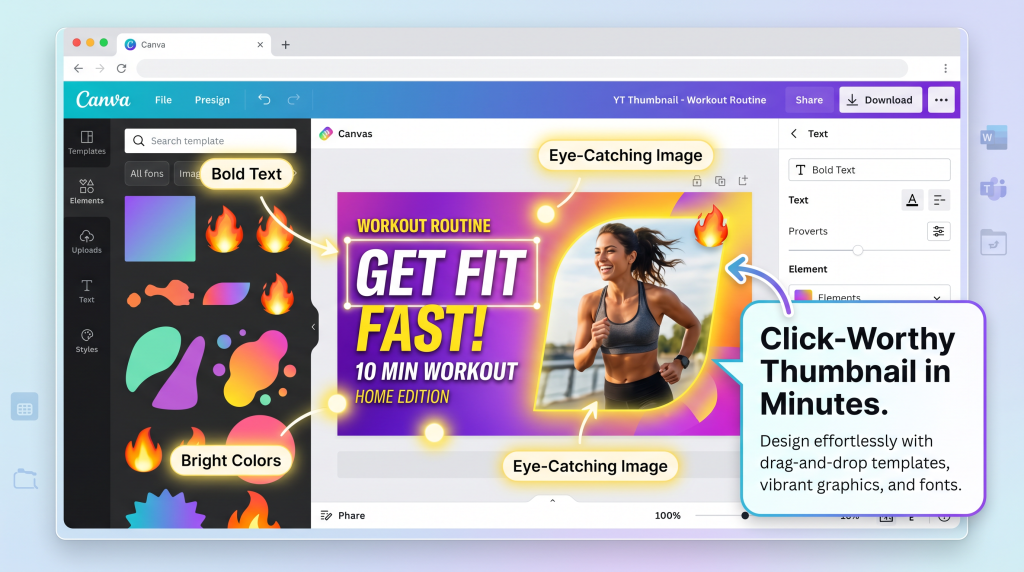
| 1 | Open Canva, search for “YouTube Thumbnail” |
| 2 | Choose a template |
| 3 | Add eye-catching image (from Pexels or Canva) |
| 4 | Add bold text (3–5 words max) |
| 5 | Use bright colors, high contrast |
| 6 | Download as JPG/PNG |
Thumbnail Best Practices:
| Element | What to Do |
|---|---|
| Image | Clear, high-contrast, relevant to topic |
| Text | 3–5 words, bold, readable at small size |
| Colors | Bright, contrasting (yellow, red, blue work well) |
| Faces | Can use stock photos, no need for your face |
Your Task: Create your thumbnail in Canva.
Step 7: Upload and Optimize Your Video
YouTube Upload Checklist:
| Element | What to Do |
|---|---|
| Title | Use keywords, make click-worthy, include benefit |
| Description | 200+ words, include keywords, links to tools mentioned |
| Tags | Relevant keywords (use ChatGPT to generate 10–15) |
| Thumbnail | Upload your custom thumbnail |
| Playlist | Add to relevant playlist (create one for your niche) |
| End Screen | Suggest next video (when you have more) |
Title Formula:
[Benefit] + [Topic] + [Timing/Result]
Examples:
Your Task: Upload and optimize your first video.
The Faceless YouTube Starter Plan
| Week | Focus | Action |
|---|---|---|
| Week 1 | Setup + Script | Choose niche, create accounts, write script with ChatGPT |
| Week 2 | Voiceover + Footage | Generate voiceover (ElevenLabs), download footage (Pexels) |
| Week 3 | Edit + Thumbnail | Edit video in CapCut, create thumbnail in Canva |
| Week 4 | Upload + Promote | Upload, optimize, share on social media |
| Result | First Faceless Video | Channel launched |
The “I’m Not Technical” Objection
This is the #1 thing that stops beginners. Let me address it directly.
You don’t need technical skills. AI handles the hard parts.
Reframe: “If you can use a smartphone, you can create faceless videos. AI does the heavy lifting.”
Realistic Expectations for New Channels
Let’s be honest about what you can expect.
| Timeframe | Realistic Goal |
|---|---|
| First video | 0–50 views (this is normal!) |
| 10 videos | 50–500 views per video |
| 50 videos | 500–5,000+ views per video |
| 100+ videos | Consistent views, potential income from ads, sponsors |
The Truth:
You now have a complete step-by-step guide: choose niche, write script, create voiceover, find footage, edit, create thumbnail, upload.
But reading the guide is one thing. Publishing your first video this month is what starts your channel.
Get Your Free Faceless YouTube Starter Kit (Benefit-Focused)
Problem Recap: You want to start a YouTube channel but don’t want to show your face. You don’t have equipment. You don’t know where to start.
Solution: I’ve created a free Faceless YouTube Starter Kit that takes this guide and turns it into a done-with-you system. Inside, you’ll get:
Action: Your first faceless video is just 4 weeks away. Pick your niche today. Write your script this week. You’ll have your first video published by next month. Click the button below, grab your free Starter Kit, and start your channel.
[Get Your Free Faceless YouTube Starter Kit →]
P.S.
Here’s the truth about YouTube: you don’t need to show your face. You don’t need a studio. You don’t need expensive equipment. You just need AI, creativity, and consistency. Start your faceless channel today. Your first video is waiting.
You don’t need to show your face. You don’t need a studio. You just need AI, creativity, and consistency. Start your faceless channel today.
Aslam Ssonko