



You’re working 50, 60, maybe 70 hours a week. You’re answering emails, scheduling meetings, creating content, sending invoices, following up with leads. You’re doing everything yourself.
And you’re exhausted.
You know there has to be a better way. You’ve heard about automation—tools that do the work for you. But every time you look into it, you see complex systems, coding jargon, and expensive tools. You assume it’s not for you.
I was exactly where you are. I was doing everything manually, drowning in tasks, wondering if I’d ever have time to actually grow my business. Then I discovered something simple: automation is just setting things up once so they run without you.
In this guide, I’m going to walk you through exactly how to automate your online business—step by step. No coding. No technical expertise. Just simple tools and clear steps to reclaim 10+ hours a week.
By the end, you’ll have a plan to stop doing everything manually and start letting systems work for you.

Soft Gate: Get Your Automation Starter Kit
Before we dive into the steps, I want to give you a tool that makes this journey easier. I’ve created a free Automation Starter Kit that includes the time audit worksheet, 30-day plan, and setup guides for Calendly, MailerLite, and Zapier.
It’s the exact system I used to automate my own business.
[Click here to grab your free Automation Starter Kit.]
What Is Business Automation? (Plain English)
Let’s start with the basics.
Business automation is setting something up once so it runs on its own without you touching it again.
Examples of Automation:
| Manual Task | Automated Solution |
|---|---|
| Emailing back-and-forth to schedule a meeting | Calendly booking link |
| Sending the same welcome email to every new client | Automated email sequence |
| Posting to Instagram, LinkedIn, and Facebook daily | Buffer social media scheduler |
| Copying data between spreadsheets and tools | Zapier automated connections |
| Creating and sending the same invoice every month | Recurring invoice automation |
The Goal:
The 5 Areas of Business Automation
| Area | What to Automate | Example |
|---|---|---|
| 1. Client Acquisition | Lead capture, follow-up, scheduling | Calendly, email sequences |
| 2. Client Delivery | Onboarding, templates, project setup | Automated welcome, template library |
| 3. Marketing | Social media, email, content repurposing | Buffer, MailerLite, repurposing tools |
| 4. Operations | Invoicing, data entry, admin | Recurring invoices, Zapier |
| 5. Customer Support | FAQs, common questions | FAQ page, chatbot, text expanders |
You don’t need to automate everything at once. Start with ONE area that drains your time most.
Step 1: Identify What to Automate (The Audit)
The Time Audit:
| Day | Track |
|---|---|
| Monday | Write down every task you do. Note how long each takes. |
| Tuesday | Continue tracking. Note which tasks are repetitive. |
| Wednesday | Continue. Highlight tasks you do 3+ times a week. |
| Thursday | Continue. Mark tasks you hate doing. |
| Friday | Review. Identify your top 3 time-wasters. |
Questions to Ask:
Your Task: Do a time audit this week. Identify your top 3 time-wasters.
Step 2: Choose Your Automation Tools
The Beginner’s Automation Toolkit (All Free to Start):
| Tool | What It Automates | Free Tier |
|---|---|---|
| Calendly | Meeting scheduling | Free (one calendar) |
| MailerLite | Email sequences, welcome emails | Free (1,000 subscribers) |
| Buffer | Social media scheduling | Free (3 accounts) |
| Zapier | Connect apps, automate workflows | Free (100 tasks/month) |
| Canva | Design templates | Free |
| ChatGPT | Content drafts, email responses | Free |
Your Task: Create free accounts for Calendly, MailerLite, and Buffer today.
Automation #1: Client Acquisition
The Problem:
The Automated Solution:
| Tool | What It Does |
|---|---|
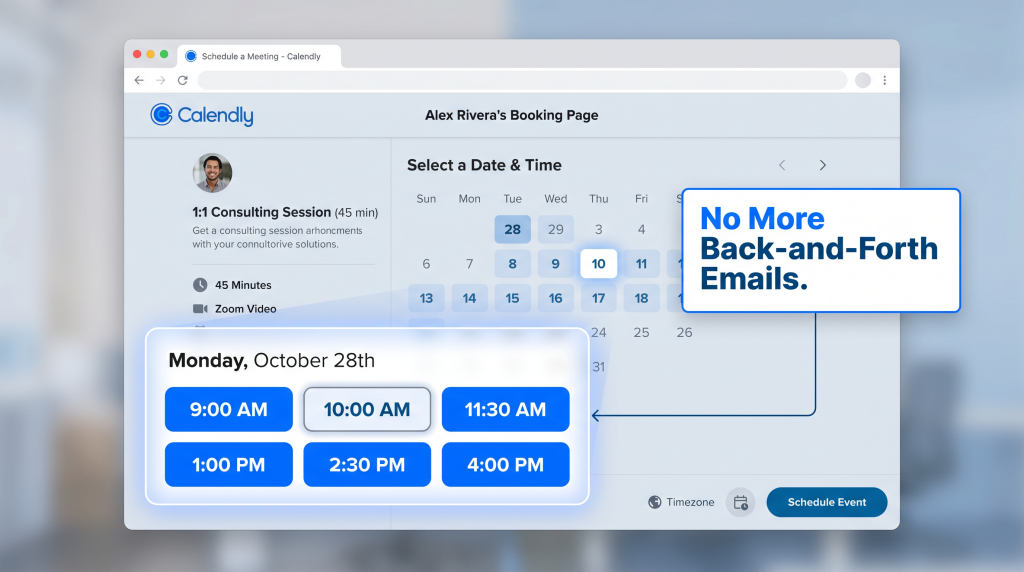
| Calendly | Clients book meetings without email ping-pong |
| MailerLite | Automated email sequence for new leads |
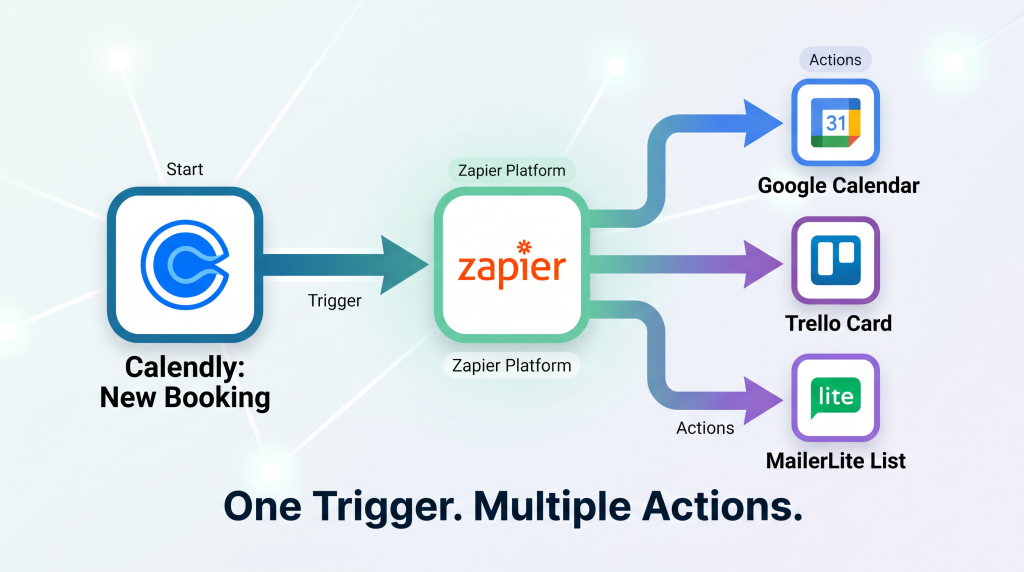
| Zapier | Connect Calendly to your CRM or email list |
How to Set Up:
| Step | Action |
|---|---|
| 1 | Set up Calendly with your availability |
| 2 | Create a welcome email sequence in MailerLite (3–5 emails) |
| 3 | Connect Calendly to MailerLite via Zapier: new booking → add to email list |
| 4 | Share your Calendly link everywhere |
Time Saved: 2–3 hours/week
Your Task: Set up Calendly and your welcome email sequence this week.
Automation #2: Client Delivery
The Problem:
The Automated Solution:
| Tool | What It Does |
|---|---|
| Template Library | Store SOPs, checklists, instructions (Notion or Google Drive) |
| Email Templates | Pre-written welcome emails, follow-ups |
| Project Templates | Reusable project setups (Trello, Asana, Notion) |
How to Set Up:
| Step | Action |
|---|---|
| 1 | Create a folder for client onboarding documents |
| 2 | Write your welcome email once. Save as template. |
| 3 | Create a checklist of every step you take for new clients |
| 4 | Save that checklist as a template |
| 5 | For project management tools: create reusable project templates |
Time Saved: 1–2 hours per client
Your Task: Create your client onboarding template this week.
Automation #3: Marketing
The Problem:
The Automated Solution:
| Tool | What It Does |
|---|---|
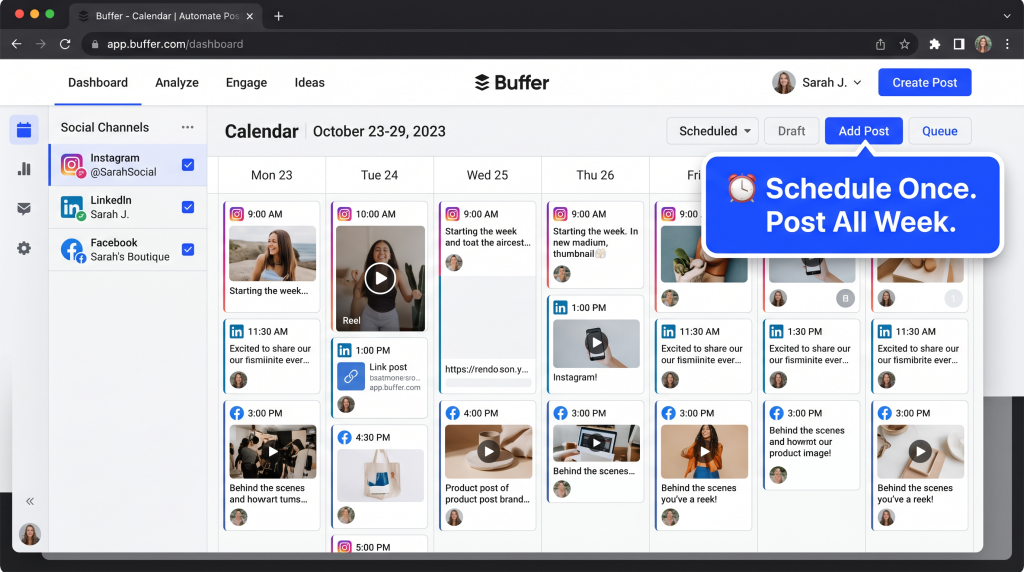
| Buffer | Schedule posts across platforms |
| MailerLite | Automated email sequences |
| Content Repurposing | Turn one piece into many |
How to Set Up:
| Step | Action |
|---|---|
| 1 | Set up Buffer. Connect your social accounts. |
| 2 | Create a weekly schedule (e.g., post Monday, Wednesday, Friday) |
| 3 | Batch-create content one day a week. Schedule in Buffer. |
| 4 | Set up an automated email welcome sequence for new subscribers |
Time Saved: 3–5 hours/week
Your Task: Set up Buffer and schedule your first week of posts.
Automation #4: Operations
The Problem:
The Automated Solution:
| Tool | What It Does |
|---|---|
| Recurring Invoices | Set up once, send automatically (Freshbooks, Wave, Xero) |
| Zapier | Connect apps so data flows automatically |
| Automated Reminders | Payment reminders, follow-ups |
How to Set Up:
| Step | Action |
|---|---|
| 1 | Set up recurring invoices for regular clients |
| 2 | Enable automatic payment reminders |
| 3 | Set up Zapier: new client → add to spreadsheet + email list + project board |
Simple Zapier Automation Example:
Time Saved: 3–5 hours/week
Your Task: Set up recurring invoices for your regular clients.
The 30-Day Automation Starter Plan
| Week | Focus | Action |
|---|---|---|
| Week 1 | Audit + Scheduling | Do time audit, set up Calendly |
| Week 2 | Email Automation | Set up welcome sequence in MailerLite |
| Week 3 | Social + Content | Set up Buffer, schedule first week of posts |
| Week 4 | Connect + Scale | Set up Zapier, connect your tools |
| Result | 10+ Hours Reclaimed | Automated systems running |
The “I’m Not Technical” Objection
This is the #1 thing that stops beginners. Let me address it directly.
You don’t need to be technical. These tools are designed for non-technical people.
Reframe: “If you can use Gmail, you can set up automation. The tools do the technical work.”
The “What If Something Breaks?” Objection
Address the fear of systems failing:
Reframe: “The cost of a small mistake is far less than the cost of continuing to do everything manually.”
You now have a complete guide to business automation: the 5 areas, the audit process, key automations, and a 30-day plan.
But reading the guide is one thing. Setting up your first automation this week is what starts your journey to reclaimed time.
Get Your Free Automation Starter Kit” (benefit-focused)
Problem Recap: You’re drowning in manual tasks, working 50+ hours a week, and know there has to be a better way.
Solution: I’ve created a free Automation Starter Kit that takes this guide and turns it into a done-with-you system. Inside, you’ll get:
Action: Every hour you spend on manual tasks is an hour you could reclaim. Set up Calendly today. That’s one automation that will save you hours every week. Click the button below, grab your free Starter Kit, and start automating.
[Get Your Free Automation Starter Kit →]
P.S.
Here’s the truth about automation: it’s not about replacing yourself. It’s about freeing yourself to do the work only you can do. Start with one system. Set up Calendly this week. You’ll get hours back. Then add another. Your Starter Kit is waiting.
Automation isn’t about replacing yourself. It’s about freeing yourself to do the work only you can do. Start with one system. Reclaim your time.
Aslam Ssonko